Lambda Functions for Excel

Spreadsheet Geeks everywhere (myself included) are getting excited about Microsoft adding Lambda Functions to Excel.
NOTE: This feature has not yet rolled out to the main Excel product but shows up in beta preview copies for people who have joined the early adopters’ program. LAMBDA functions should be released to general Excel users sometime this year.What are Lambda Functions, you ask? (I’m so glad you asked!)
LAMBDA Functions are named after a letter in the Greek alphabet, and they allow Excel users to create custom functions. Excel users are familiar with using Microsoft’s built-in functions. Everything from calculating a mortgage payment (PMT) to dissecting a text string out of the middle of a sentence (MID) can help users automate very complex processes. What happens, however, if you need a function that Microsoft does not include in the box? Then your only real option is to turn to macro programming. Thirty million people worldwide use Microsoft Excel, but only a small percentage of them (0.5% - that is less than half of one percent) have any programming knowledge. With Lambda Functions’ addition, users can provide new custom functionality to Excel without learning a programming language. Let’s use a simple example to explain this powerful feature: A user wants to create a full name from two columns of data that contain the first name and the last name. They need to add this full name from multiple different tables that are different in structure. At first glance, it would look simple enough. You would enter a formula into cell D4 that concatenates the two parts of the text together, adding an & “ “ & in between to provide a space. Then you would fill-down the formula to the other cells in the table.
 Although this method would work with the Employee table, it would not work with the Customer table. If a user tried to copy and paste the formula from the first table into Cell I4 of the second table, it would fail because the Customer table has a different order of columns. In a large spreadsheet with multiple types of tables, this could get ugly fast.
Now LAMBDA functions come to the rescue. Using the Name Manager in Excel, I can create a formula with any name that uses the LAMBDA syntax:
Although this method would work with the Employee table, it would not work with the Customer table. If a user tried to copy and paste the formula from the first table into Cell I4 of the second table, it would fail because the Customer table has a different order of columns. In a large spreadsheet with multiple types of tables, this could get ugly fast.
Now LAMBDA functions come to the rescue. Using the Name Manager in Excel, I can create a formula with any name that uses the LAMBDA syntax:
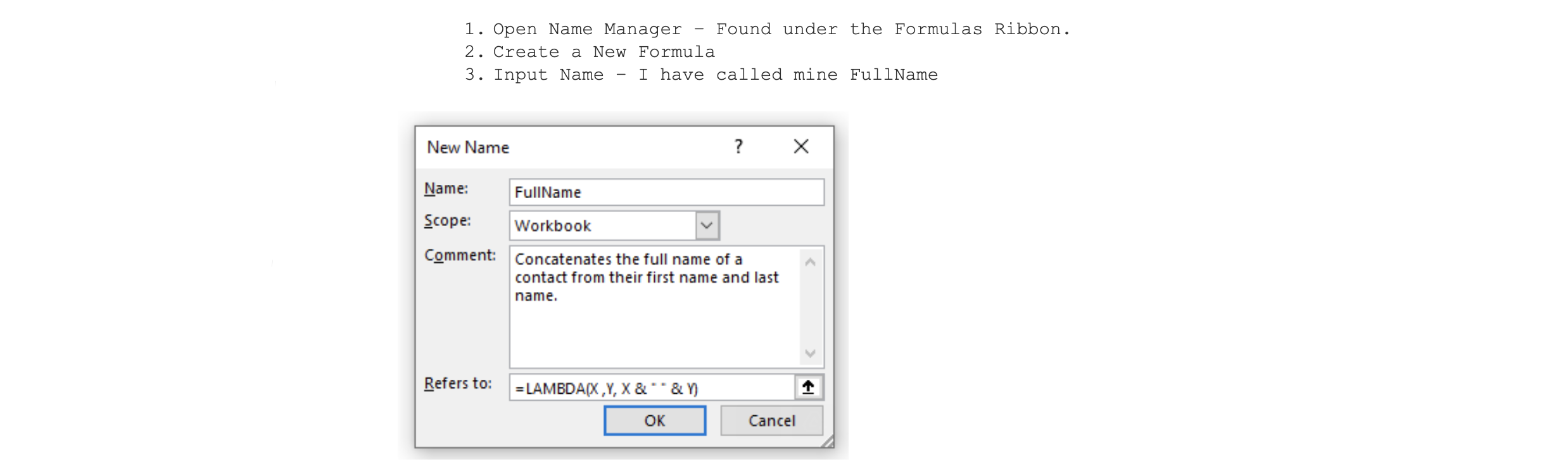 In the Refers to section, you will write the LAMBDA formula that you want. LAMBDA formulas follow a simple syntax.
=LAMBDA (Input 1, Input 2, …Calculation (using the inputs))
For the inputs, we use generic placeholders, such as X & Y, for the values. X is input 1, Y is input 2, and the formula section takes Input 1 and input 2 and concatenates them together with a space between them to separate the words. Once this LAMBDA formula is created, users can now execute the procedure directly by typing in the LAMBDA function name.=FullName(“Mike”, “ONeill”), and I will get the return value of Mike ONeill. They could still use references like =FullName(H4, F4), which in the above example would give the result Olivia Rose.
This example was elementary, but now imagine if you created a complicated formula. I once had a customer who had invented a formula to calculate the amount of a liquid that could flow through any size hole based on the temperature, viscosity, pressure, and size of the hole. It was a massive formula that involved lots of math. (They gave me a necktie with the recipe printed on it. The formula covered the entire front of the tie. So cool!) This company (that used to rely on writing programming code to make their formula work) can now use LAMBDA functions using the four variables to get an answer for any liquid. Imagine a long table of possible conditions for any liquid listed. Each entry could easily use LAMBDA formulas to calculate the size of the hole needed. They could then extend the Excel Built-in Functions with hundreds of their own custom functions without hiring programmers to build it all for them. LAMBDA functions are currently in Beta and hopefully will be released sometime in 2021.For or latest webinars, check our List of Events.